Showing posts with label Photoshop. Show all posts
13 April 2010 | 1 comments

Kita Bebas Untuk Lakukan Apa Sahaja, Tetapi..

Kita memang bebas untuk lakukan apa sahaja, tetapi ingatlah satu perkara walau apa jua agama anda, kita sedang diperhatikan.


nota: Daftar IP Man 2 Kad Kredit GSC EON Bank dan menangi Samsung Jet Mobile Phone, Samsung Explorer B2100 dan tiket tayangan perdana. Untuk maklumat lanjut, lawati www.gsc-eonbankcard.com.


10 April 2010 | 1 comments

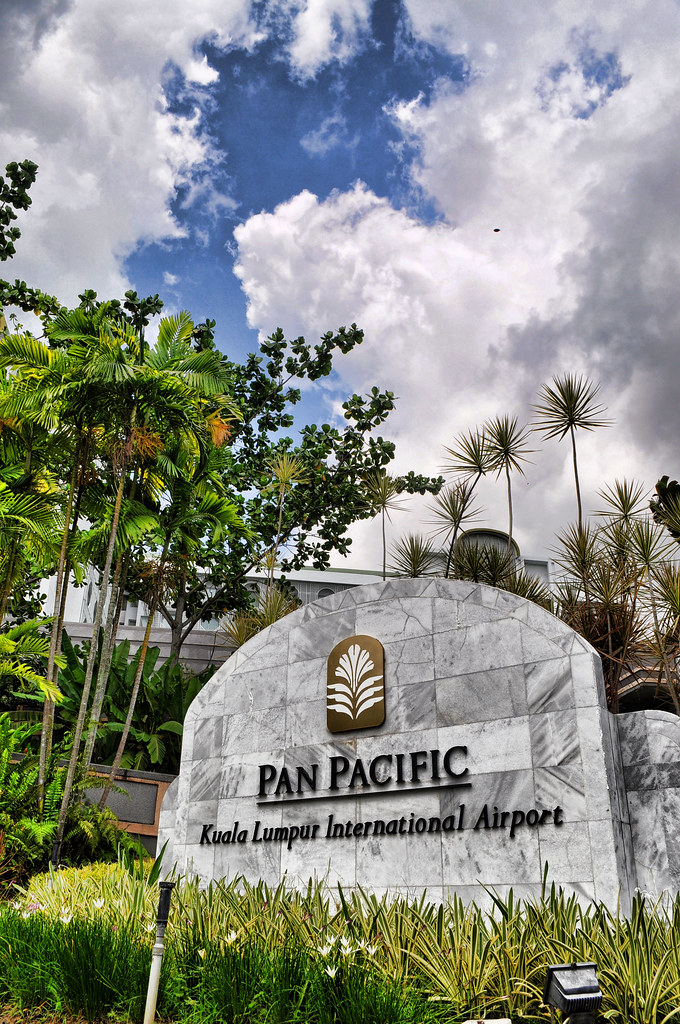
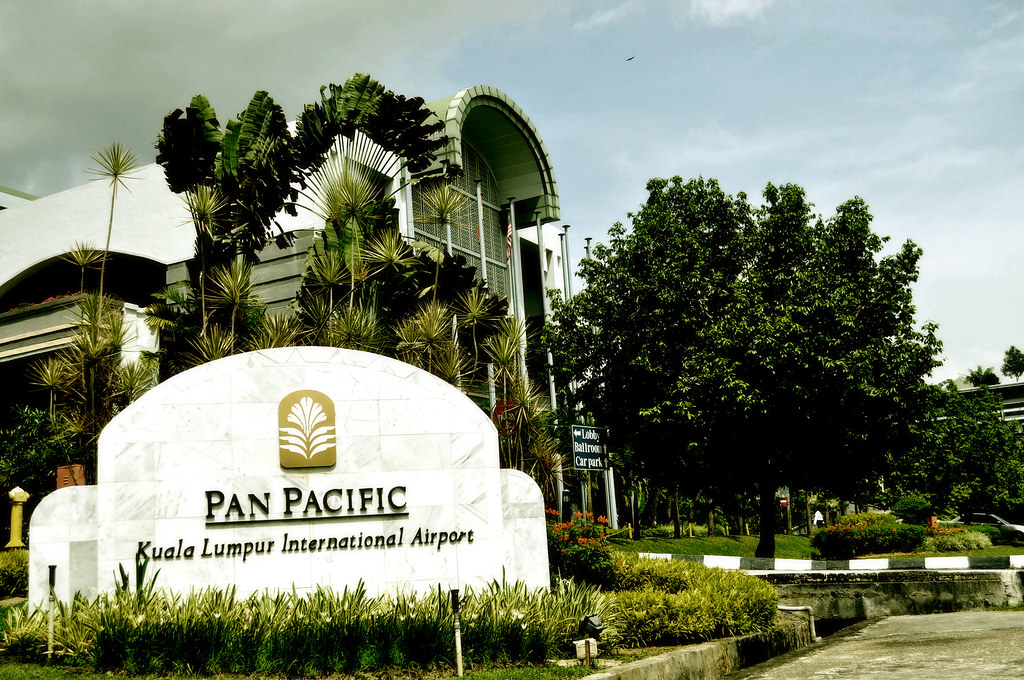
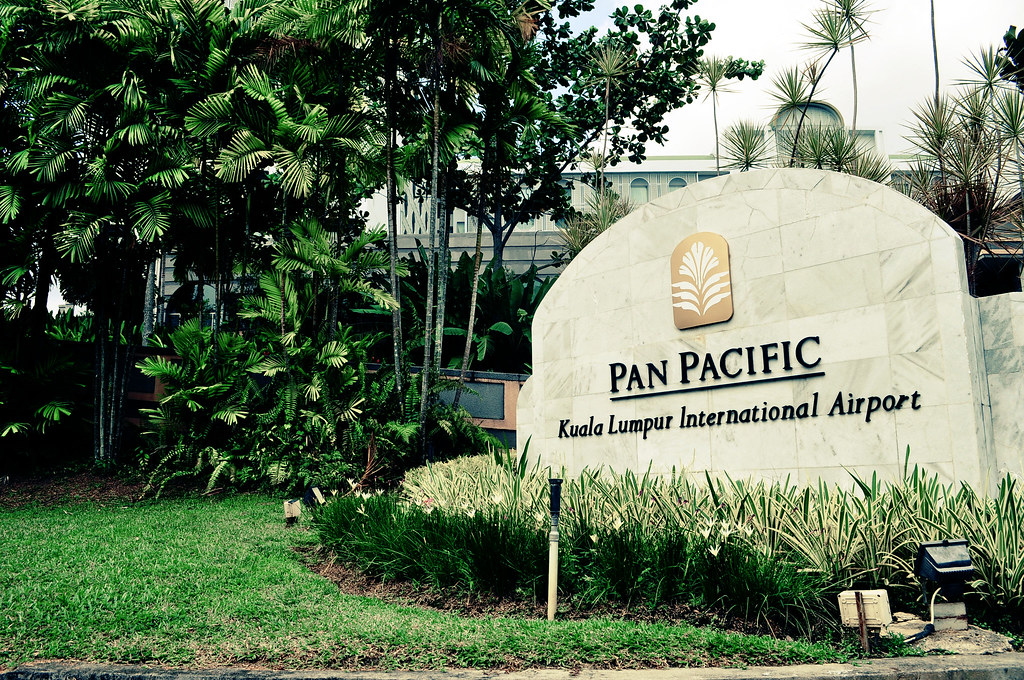
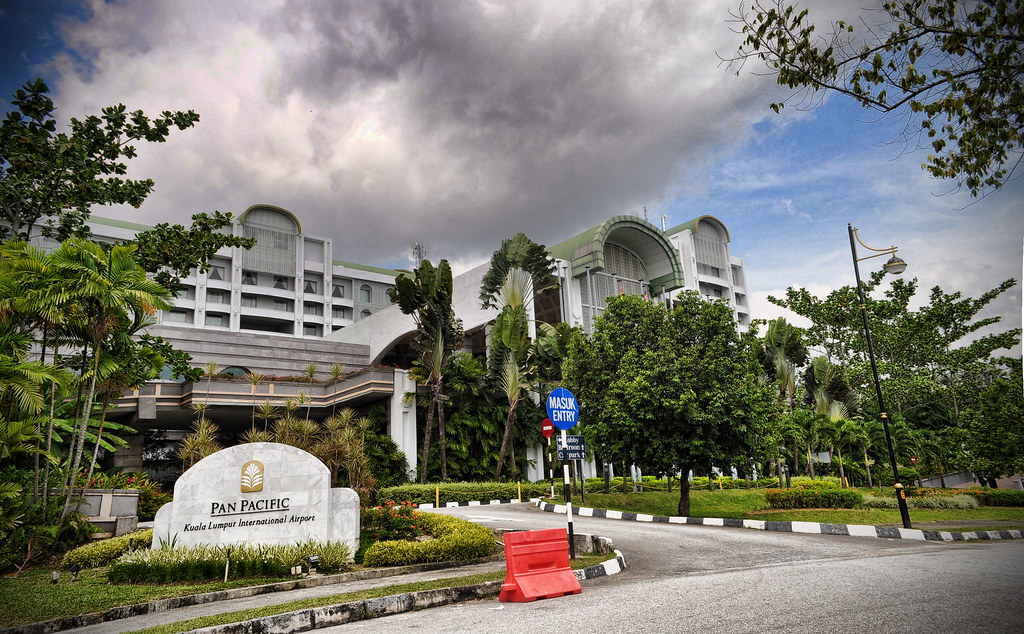
Pan Pacific KLIA

Salam sejahtera. Maaf kerana tiada sebarang kemaskini kerana ana bermusafir untuk berjumpa dengan para sahabat. Ini sedikit buah tangan untuk kalian.


Special thanks to Enchek Noor Shahrir + Gadis for the gear.


01 April 2010 | 6 comments

Fort Cornwallis, Padang Kota Lama, Penang


Entri ini sebenarnya dah lama patut dikarang, tapi disebabkan banyak urusan yang patut diselesaikan dahulu, maka lambatlah keluar. Hehehe. Ini semua ditangkap 6 Mac lalu, sewaktu bercuti bersama sang gadis di Pulau Mutiara.

Dari takde benda nak update, bantai saja! Layann


26 March 2010 | 5 comments

(Video) Tool Photoshop Paling Menarik!


Oh2, sumpah aku teruja tengok video ni! Bila mau keluar ni! Argh! Memang berita paling menarek buat para photoshopper walaupun aku sendiri dah kurang bermain dengan photoshop karena terlalu sibuk menguruskan ikan-ikan. Hehe.

Sekarang ni, kalau untuk buang benda-benda yang tak patut, aku pakai clone tool je. Jarang guna healing tool. Tapi kalau dah ada benda ni, mesti lagi cambest! Hanya perlu pilih je benda alah yang nak dibuang, langsung jadi je.

Inilah diantara contoh yang korang boleh buat dengan tool ini,


22 March 2010 | 14 comments

Iklan Kreatif Kempen Anti Rokok


Kali ini, entri untuk diri sendiri dan orang-orang yang terlibat dengan tajuk diatas, "Perokok". Aku tak mau cakap banyak-banyak sebab hari tu dah panjang lebar bebel, yang penting, aku boleh je kawal rokok tu kecuali masa betul-betul stress.

Ini antara iklan-iklan yang wajib perokok tonton:-


19 January 2010 | 8 comments

Photo Contest - Cik Ros


Daripada menjadi laman se-sawang (website - erk!), hasil manipulasi diambil khas buat Cik Ros. Hahaha,

Sudikanlah dirimu memberi ruang untukku menyelit entri ini yea cik ros.

Jika orang lain taruk gambar yang enjoy, happy, nice, clean, aku kembalikan wajah drakula-ku.


08 November 2009 | 2 comments

Photoshop Retouch (Not TUTORIAL)

Oh, oh, maafkan diriku kalian. Memang sibuk yang keterlaluan, layout pun dari haritu lagi kata nak tukar, tak tukar-tukar lagi. Masih tengah memikirkan, nak guna http://myfr3ak-dark.blogspot.com/ ataupun tidak sebab layout tu rasanya agak berat disebabkan menggunakan agak banyak jquery. Saja ja mau try Jquery tu yang buat macam tu. Layout itu takpun di'convert ke blogger lagi, nak cuba meringankan layout dulu, baru convert.

Abaikan layout untuk sementara waktu, raya aku 2-3 bulan kot (logo tu). Hahaha. Ini ada sedikit barang untuk dikongsi, saja main-main photoshop setelah berhempas-pulas dengan kertas kerja.


Ini gambar original


dan ini pula gambar setelah mendapat sentuhan


layer dalam photoshop

* clone tool untuk buang habuk pada permukaan pagar dan membuang motor
* level & brightness/contras adjustment.


Tamat. Hehe


20 August 2009 | 6 comments

Operasi Gerak Gempur Merdeka | Kukubesi

Labels: ,

Ini adalah gambar original sebelum dimanipulasi, tugasan Operasi Gerak Gempur 7 di markas kukubesi. Bro KB suruh buat tema merdeka, dan aku rasa, ini pun kira merdeka la jugak! Hehehe, yelah. Kalau tidak ada pengorbanan orang lama, kita takkan merasai kemerdekaan.


Dan inilah hasilnya, apa yang aku dah buat?

  • buang drumstick | Clone Tool, Smudge Tool
  • tambah tengkolok, keris dengan sarung keris | kalau korang perasan, aku pakai effect Bevel & Emboss kat bahagian atas sarung keris tu
  • buat effect kat tangan kanan dia | Pen Tool, Gaussian Blur
  • tukar telinga dia + potong rambut dia belah kiri | Pen Tool
  • buat bayang kat bawah tengkolok, bawah sarung keris | Brush Tool
  • dan main adjustment | Level, Curve, Color Balance
  • font | Trajan Pro

"Aku buat ni dapat apa?" - saja ja, lama tak godek-godek photoshop. Benda kalau tak practice nanti lupa, betul tak sepang (pro)?


17 June 2009 | 10 comments

Photoshop Tutorial: Cut Out using Pen Tool

Labels: ,
Hi all, actually this is the part of the tutorial how to make this image that i'll post in TheTuts. How to cut a photo using the Pen Tool (sepang, ehem..ehem..).

Final Result


Original Photo - Here (by thivierr)

Step 1
Click Pen Tool on the toolbar, and make sure you click on the Paths,Add to Path Area (+) just like the image.


Then, draw the outline of the image using Pen Tool.


Step 2
Here is result when you're finish drawing the outline of the image.


Right click on the image (still with your Pen Tool), click Make Selection


and here is the result of the action (make selection).


Step 3
Create a new layer of the selection image. Go to Layer > New > Layer via Copy


After put white background behind the layer that we've create and hide the original layer, this is the result.


Yes, it still not perfect right? As you can see, the should of the right ladies still covering by black coat and we'll fix it later.

Step 4
With the same technique, remove the background between the hand and the body.


Yehaa, we're done with the background. Now we will fix the shoulder part.

Step 5
Now we'll using Polygonal Lasso Tool to create a duplicate of the left shoulder. Draw the outline at the shoulder and right click, choose Make Selection and go to Layer > New > Layer via Copy. Rename the layer as 'Right Shoulder'.


Step 6
Then, flip the Right Shoulder layer to horizontal. Edit > Transform Points > Flip Horizontal


After that, place the Right Shoulder layer on the right position. Rotate the Right Shoulder layer a little bit by clicking [CTRL] + [T] (win) or Edit > Free Transform Points.


Erase the unnecessary things on the Right Shoulder layer using the Erase Tool.


Step 7
As you can see, the tone of the hand is still not nice, correct it with Brightness/Contrast tool. [Image > Adjustments > Brightness/Contrast]. Just trying the perfect tone, here is mine (not perfect but still good enough). Brightness (-14), Contrast (0).


Step 8
Using the Pen Tool, draw the outline of the bandage (make sure you are selecting Original layer) and Make Selection of it then create a new layer via copy [Layer > New > Layer via Copy]. Rename the layer as "Bandage", move the layer to the top and place it into the right position.


Step 9
Here is the value for the Bandage layer for it Brightness and Contrast (Image > Adjustments > Brightness/Contrast). Brightness (-13) , Contrast (-15). You can try your own to get the best result!


Step 10
As you can see, the Right Shoulder layer still not very realistic. Touch-up it using Burn Tool


with the setting,


here is the final result
That's all for now and thanks for reading this tutorial! I'll try to complete the tutorial as soon as possible and this is the image that we'll do.


Click to continue


25 April 2009 | 6 comments

Speedfinger.org V4!

Assalamualaikum & Hi all!

Korang tahu kan speedfinger? Satu ketika dahulu, SP (Speedfinger Portal) agak top jugak la, tapi disebabkan banyak dugaan yang datang melanda, makin lama portal ini semakin sayup dan agak perlahan.

Kini SP telah berwajah baru! mf? Bos besar (Eddie) telah kasi assignment yang pertama untuk mf! Hahaha, assignment apa? mf ditugaskan untuk buat splash image la untuk SP ni. Hasilnya?


ini .png yang mf buat


dan ini bila dah masuk dalam page


Jeng-jeng-jeng.. Hehe, katak tu memang moskot SP dari dulu, untuk font "Speedfinger" tu, mf pakai 04b03, main dengan brush sikit. Sebenarnya, mf memang tak pernah tuntut apa-apa pun bila orang suruh buat barang (kecuali wafi..Hahaha), bukan apa, just for gaining some extra knowledge + experience. Untuk art ni, mf dapat topup free! Hahaha, berapa? Shuuu.. Rezeki ;) 

Anyway, thanks a lot bro! 

p/s: mf ingatkan bro dok putrajaya lagi, tup-tup dia kata, dah 3 tahun dia pindah! Hahaha, mintak maap la bro, memang ada penyakit "5 Min Tom (penyakit Adam Sandlers dalam 50 First Date, hehe)".


24 April 2009 | 0 comments

Blog Diserang Makhluk Aneh!

Salam & Hi semua!


Korang ada perasan tak dua ekor makhluk yang sedang bertenggek kat blog mf ni? Hehe, yang baru biru adalah pemilik blog dan yang kanan tu, si sepang. Korang nak letak dalam blog korang pun boleh je, korang potong gambar korang pakai Pen Tool dalam Photoshop, buang background belakang, simpankan gambar itu .png.

Lepas tu, korang bermain-lah dengan CSS, contohnya, macam mf punya:-


untuk margin tu, eksperimen je tu, yang z-index tu, nak bagi layer gambar tadi diatas sekali. Tetapi malang sekali, Google Chrome dengan Safari 4 tak support z-index (ia berfungsi dengan baik untuk IE8, Firefox 3). Mungkin ia akan muncul hanya dengan memanggil javascript seperti adiwidget punya.


13 April 2009 | 12 comments

Screencast: Drawing Soft & Fluffy Love Shape in Photoshop [UPDATE]

Assalamualaikum!

Buat sesiapa yang mengikut tutorial yang aku dah buat untuk posting ni, aku try buat video plak! Hahahaha, dalam Bahasa Malaysia OK! Tapi memang malang gila nasibku, mic macam ampes! Oleh disebabkan itu, kualiti audio agak kurang dan terlalu perlahan! Anyway, Enjoy la tutorial yang tak seberapa ni!

[UPDATE: 2:42AM - Tutorialvid betul-betul melajukan video, so aku try test Blip.tv pulak!]


10 April 2009 | 1 comments

Photoshop: Soft & Fluffy Love Shape

Labels: ,
Assalamualaikum and hi to everyone!

Let's play with Photoshop again! How to create a Soft & Fluffy Love Shape?


Feel free to view the tutorial here.


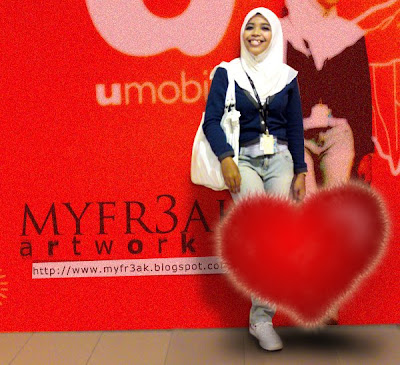
Photoshop: Gadisku dan U-Mobile

Nak kena cerita ka? Hehehehe

Layan jerla ek..

dan ini gambar orinya

Lokasi: Depan Kedai U-Mobile, Times Square
Snap guna: C905

p/s: gambar yang 1st tu agak "over" disebabkan aku saje guna effect noise. Click je gambo nye, nampak la ok sikit..


07 April 2009 | 17 comments

Photoshop: Aku dimanipulasi

Salam! 

Disebabkan aku memang pengidap insomia, dah 2 jam letak kepala masih lagi tak dapat lelapkan mata. Aku berkarya lagi, selalunya artwork-artwork aku agak 'clean' tapi untuk kali ni, kita buat sedikit kelainan!

Dengan skill yang tak seberapa ni, aku try manipulasikan gambar aku sendiri! Hahaha!


Warghhhh~!!!


01 April 2009 | 9 comments

Serabut dengan Assignment + Typing Speedtest

Assalamualaikum semua!

Sebab apa aku jarang update blog dah sekarang? Sebab dengan assignment semua, mende alah ape tah bersepah-sepah, naik serabut pulak aku! Even sekarang ini pun, aku tengah buat assignment Office Administration 2. Dia suruh develop satu product yang multi-function. Dengan logo lagi, then suruh buat product tu punya illustrate! Haihh.. nak tengok hasil dia? Ni dia, Mable! (multi-function Table) 

Hahaha, actually, aku sebenarnya memang tak familiar dengan Adobe Illustrator ni, kalau Adobe Photoshop tu, boleh la jugak, kenal la jugak dengan tool-tool dia, Adobe Illustrator ni? HARAMM tak tau! 

aku hanya illustratekan benda yang budak ni lukis atas 
kertas graf! Haha, tapi sebijik la.


Aku ada download tutorial dari lynda.com punya, tapi tak sempat lagi mau tengok tutorial tu. Hehe. So, aku main taram je buat mende alah tu + aku memang takde bakat melukis punya. 

Dan disebabkan agak ke'tension'an, aku saja melawat-lawat bro Eddie punya blog, dah semakin "MUDA" dah otai Speedfinger.org ni (jangan marah noo bro..hehe) dan terus ke blog ZaaG (orang SP gak ni), tetiba nampak la ada Typing Speed. Aku pun teruskan usaha aku! Hahaha, resultnya?

270 points, so you achieved position 430826 of 2991152 on the ranking list


You type 365 characters per minute
You have 62 correct words and
you have 0 wrong words

62 words

Speed test

Kalau korang rasa agak-agak kebosanan tu, try la. Hehe. Enjoy!


05 March 2009 | 17 comments

Sharing is Caring, but Ripping is Fucking~

Labels: , ,
Assalamualaikum semua!

Malam ni mood aku agak unstable, maybe sebab pressure dengan test dan jugak ada 1 menda yang agak melucukan + menggeramkan (menggeletar aku punya geram, selamat ada sepang..ayat dia rileks ja - "SanG sEpanG: ko ckp jea.. knwldge is power, but sharing caring not 4 mtherfucker").

Korang ade baca tak tutorial pasal Customize embedded video tu? Bukan ape, bukan la berkira @ kedekut, tapi sekurang-kurangnya, takyah la ngaku kau tu hebat kalau takat rip barang orang (teringat aku zaman IRC dulu dan mungkin mamat ni tak tau apa erti ripper tu).

thE fReAk (3/5/2009 1:13:03 AM): /*+++++++ Youtube Css ++++++++++*/ .v { width:463px; height:372px;margin:50px;padding:auto; } .vtop { background:url(http://i172.photobucket.com/albums/w38/black_parade_goth/vtop.png) center no-repeat;height:17px; } .vbg { background:url(http://i172.photobucket.com/albums/w38/black_parade_goth/vcenter.png) center repeat-y;padding-left:15px;padding-bottom:5px;} .vbottom { background:url(http://i172.photobucket.com/albums/w38/black_parade_goth/vbottom.png) center no-repeat;height:19px; }
thE fReAk (3/5/2009 1:13:15 AM): camni kata "saya terer html/css"?
***_******** (3/5/2009 1:13:33 AM): kote
thE fReAk (3/5/2009 1:13:36 AM): kasi simpann laaa
***_******** (3/5/2009 1:13:39 AM): ako dapat kode
thE fReAk (3/5/2009 1:13:43 AM): butuh
***_******** (3/5/2009 1:13:44 AM): bukan kt ang
thE fReAk (3/5/2009 1:13:45 AM): aku buat sendiri
thE fReAk (3/5/2009 1:13:53 AM): aku tau la code aku
***_******** (3/5/2009 1:14:06 AM): ang tgk dari mula kode ako tuh
------------------------------------------------------------------------
thE fReAk (3/5/2009 1:15:11 AM): apa beza?
***_******** (3/5/2009 1:15:12 AM): margin right
thE fReAk (3/5/2009 1:15:18 AM): margin dengan padding
***_******** (3/5/2009 1:15:20 AM): pa
thE fReAk (3/5/2009 1:15:21 AM): tu ja aku tanya
***_******** (3/5/2009 1:15:25 AM): tuh tepi skali
***_******** (3/5/2009 1:15:30 AM): rad tuh
***_******** (3/5/2009 1:15:31 AM): pad
***_******** (3/5/2009 1:15:33 AM): tuh
***_******** (3/5/2009 1:15:37 AM): tepi skali
***_******** (3/5/2009 1:15:41 AM): margin
***_******** (3/5/2009 1:15:44 AM): jarak ckit
-------------------------------------------------------------------------
***_******** (3/5/2009 1:19:23 AM): ang rip 


1. Bukan dari aku? Awat class dengan comment untuk css tu sama ja.
Info Bengap:
class = .v {}, .vbottom {}, .vtop {}, .vb {}
comment = /*+++++++ Youtube Css ++++++++++*/

2. Apa beza Margin dan Padding?
Info Bengap:
Yaka? Padding tepi skali? Margin jarak sikit?
Google~ Tolong ajar jab budak bengap ni!

3. Aik? Aku pulak rip?
Aku rip? Hahahaha, bukan nak berlagak la, tapi untuk pengetahuan ko, aku habiskan dekat sejam lebih (aku sedar aku noob) untuk adjust css kasi perfect + cross-browser (safari/mozilla firefox/IE 7). Image tu pun aku potong sendiri.

Info Bengap:
Kalau ko nak rip pun, tukar la filename, class dengan comment tu. Then ngaku sendiri punya. Tak salah pun ~

Kepada budak bengap yang mengaku webmaster kepada 2 laman web, memang aku tak respect kau! Pegi mampos sama kau~ Bukanlah sombong, tapi nak kasi ko tu sedar diri sikit!

p/s: Aku bukan macam ko, hebat css/xhtml/photoshop/illustrator/javascript (pengakuan oleh seorang rippers). Tapi, sekurang-kurangnya, aku belajar dan sedar diri ;) kalau takat pakai barang orang, then nak bangga, pegi balikk laaa ~ Ape aku heran.. Wahaha


24 February 2009 | 5 comments

Customize Your Embedded Video with Photoshop/CSS

Labels: , ,
Hello there, for this post, I would like to teach you "How to customize your embedded Youtube video in your blog".

When you put the embedded video such as Youtube video, the player just like this:
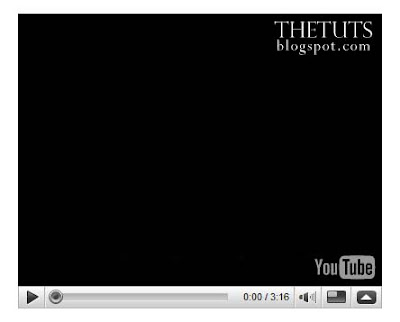

How to change the player to become this:
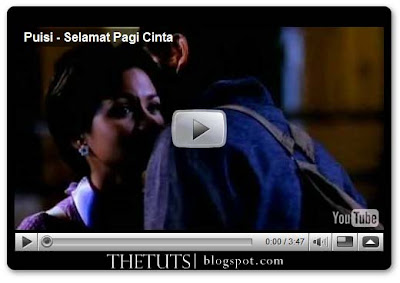

Step 1: Identify

Here is the code that you can copy on the right panel from Youtube.


The main part of the modification is the size of player.

width: 480px
height: 295px

Step 2: Photoshop part

Step 2.1
Create a New Document with width 530px and for the height is 345px to make the layout for our new player layout (increase the size to 50px or higher for the shadow).
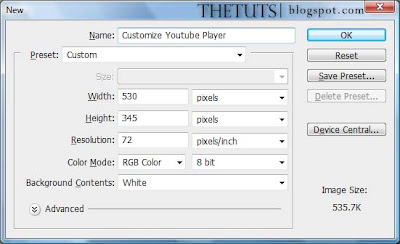

Step 2.2
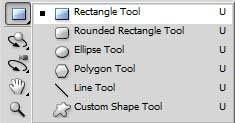
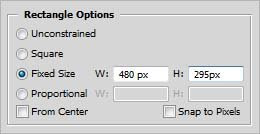
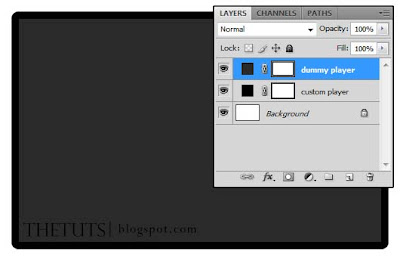
Create the dummy player for Youtube Player with the original size. Click on "Rectangle Tool (U)" and set the fixed size with the original player size (width= 480px, height = 295px). Choose "Grey" color for the foreground and click anywhere in your document. Place the "dummy player" at the center of the document.
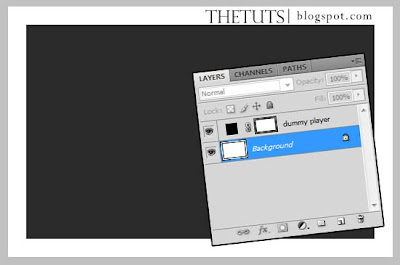

Rename the rectangle to "dummy player" to make your work become more easier.

Step 2.3
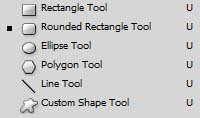
To make our own player, click "Rounded Rectangle Tool (U)", set the radius to 10px and choose "black" for the foreground. Click anywhere in your document and place it behind the "dummy player". Name it as "custom player".

Step 2.4
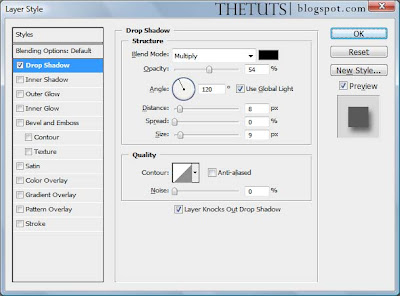
Right click "custom player" in the Layers Panel, select "Blending Options" and choose "Drop Shadow". Just follow this setting.


Step 2.5
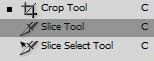
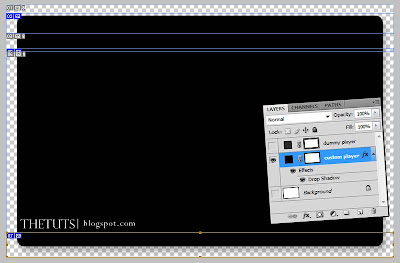
Here come the tricky part. "Invisible" the "dummy player" layer and the background layer, then, take a "Slice Tool (C)" and cut to 3 slices (top, center and bottom).

Step 2.6
When you're done with your slicing, go to "File > Save for Web and Devices". Press "Shift" and click "top, center and bottom" slice. Save it with "PNG-24"
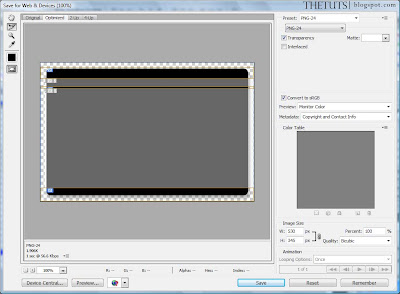

Okay, we're done with photoshop.

Step 3: CSS

Step 3.1:
Html


Explaination

v = the div for the player
vtop = load the top image
vbg = load for the center image and it repeating the horizontal
vbottom = load the bottom image

Step 3.2: CSS


Explaination

.v = we set the width for the player is 540px, and 372px for the height. Margin, Padding = Auto.
.vtop = load the top image called "top.png" and set the height for it or the image can't see.
.vbg = load "center.png" and keep it repeat-y (no need to set the height).
.vbottom = load "bottom.png", and set the height to the image size.

and here is your final result.


p/s: try our player with cross-browser, to avoid some 'craps' annoying the our visitor (I'm not a css expert, I still on learning process).

download the image here.